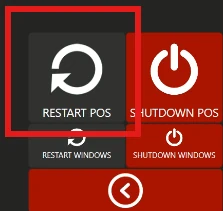
How to Accept Changes on PushPOS
Steps
-
Re-login as Admin on the POS device.
-
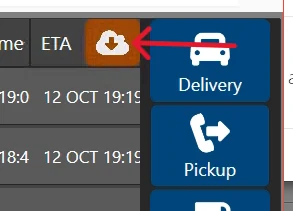
Once logged in, look for the blinking red cloud icon at the upper-right corner of the POS screen.
-
Click the icon, then select UPDATE on the Cloud Menu Update popup.
The POS will now apply the latest configuration changes from the portal.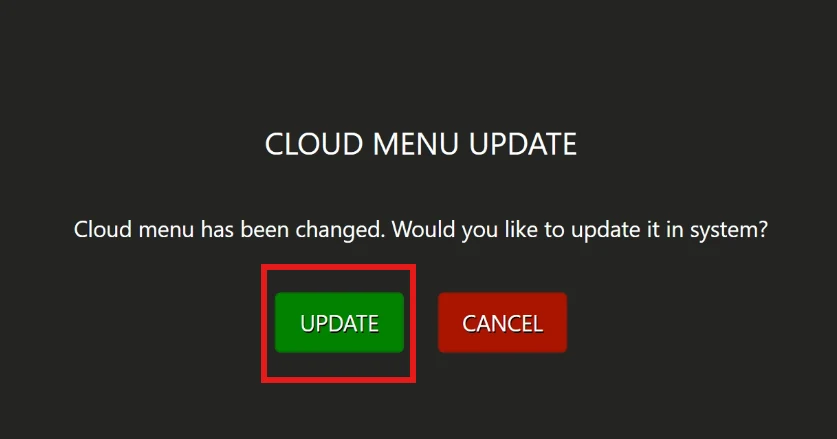
Note:
-
If the cloud icon does not appear after re-logging in, log out again and choose Restart POS. This will refresh the system and do the same procedure.